Alarms
Alarms
When an alarm is generated on a G-Health Client it will appear in the alarm list if the client is currently connected to the server.
New alarms should be viewed by operators and then marked as acknowledged.
For alarms which are able to be resolved, such as a camera coming back online after being disconnected, the G-Health client will send a notification to the server informing it that the alarm has finished. Once this has occurred the operator should mark the alarm as archived.
The alarms screen provides a list of all alarm activity (with the exception of archived alarms). From this screen you can filter and action alarms.
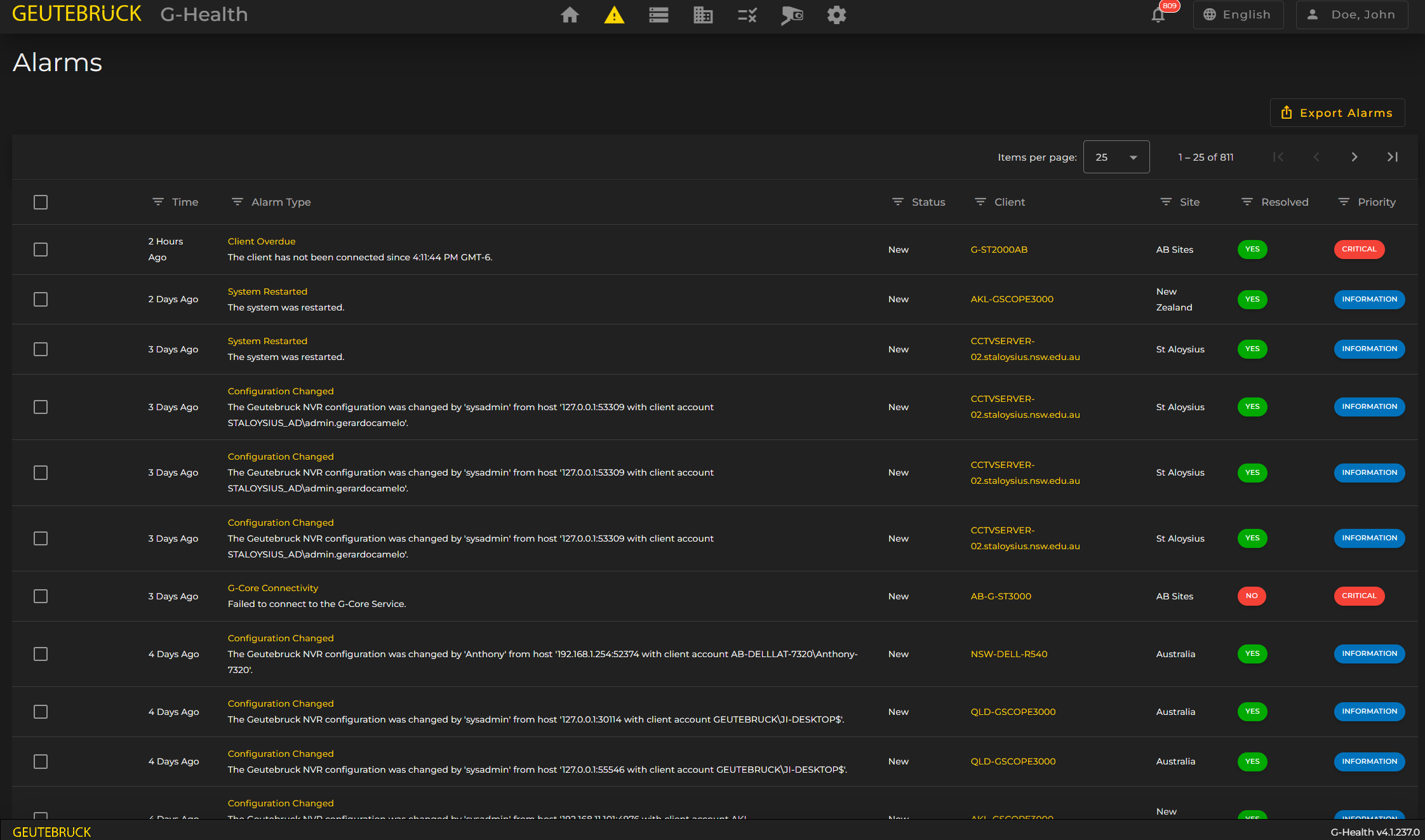
Viewing and actioning Alarms
Click on the alarm title, in the alarm type column, to view more detail about each alarm. Here you can acknowledge and archive alarms or also add notes.
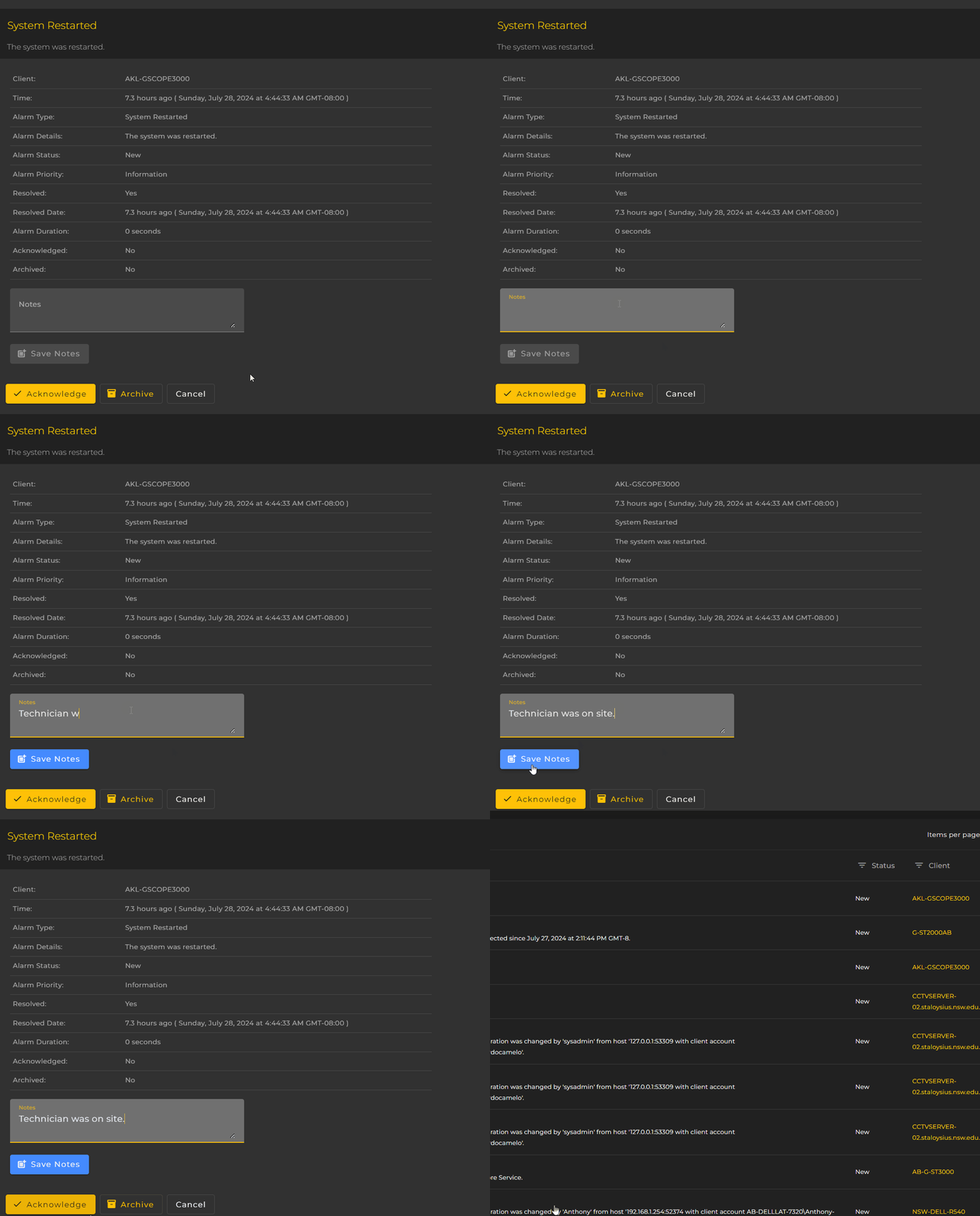
Acknowledging Alarms
When a new alarm is received by the G-Health server an operator should check the details of the alarm, and when ready, mark the alarm as acknowledged.
Alarms can also be acknowledged in bulk by clicking on the checkbox in the alarm list for the desired alarms and then clicking the 'Acknowledge' button at the top of the list. The checkbox at the very top of the alarm list can be used to select all alarms on the page.
Archiving Alarms
When a new alarm has been resolved and the operator has determined that the issue is dealt with they can archive the alarm. An alarm can be archived by clicking on the checkbox in the alarm list and then clicking the 'Archive' button at the top of the list. Using the select all option from the checkbox dropdown alarms can be archived in bulk.
To view previously archived alarms select the Status filter and select Archived