Licensing
From the Licensing Page it is possible to see the state of the G-Health System Licensing.
You can see the License Key, any expiry date, and the licensed client count.

License Activation
Under a default install there should be a single server appearing in the server list. Click on this server to open the edit licence dialog.
Here you can load the licence key provided to you in the 'Key' field.
Next you have two options:
-
If the server has internet access then you can click the 'Activate Online' button and the software will automatically load the license key and activate itself.
-
If no internet is available then an offline activation must take place.
-
Click the 'Offline Activation Request' button to download an activation request file.
- Send this file to your Geutebruck Representative. They will provide you a licence activation file.
- Click the 'Upload Activation File' button and select the activation file you have been provided.
The server should now be activated and display the licensed client count.
License Deactivation
Licenses can be deactivated. This allows them to be removed so that they can be reactivated again on a different system.
Click on the server in the license list.
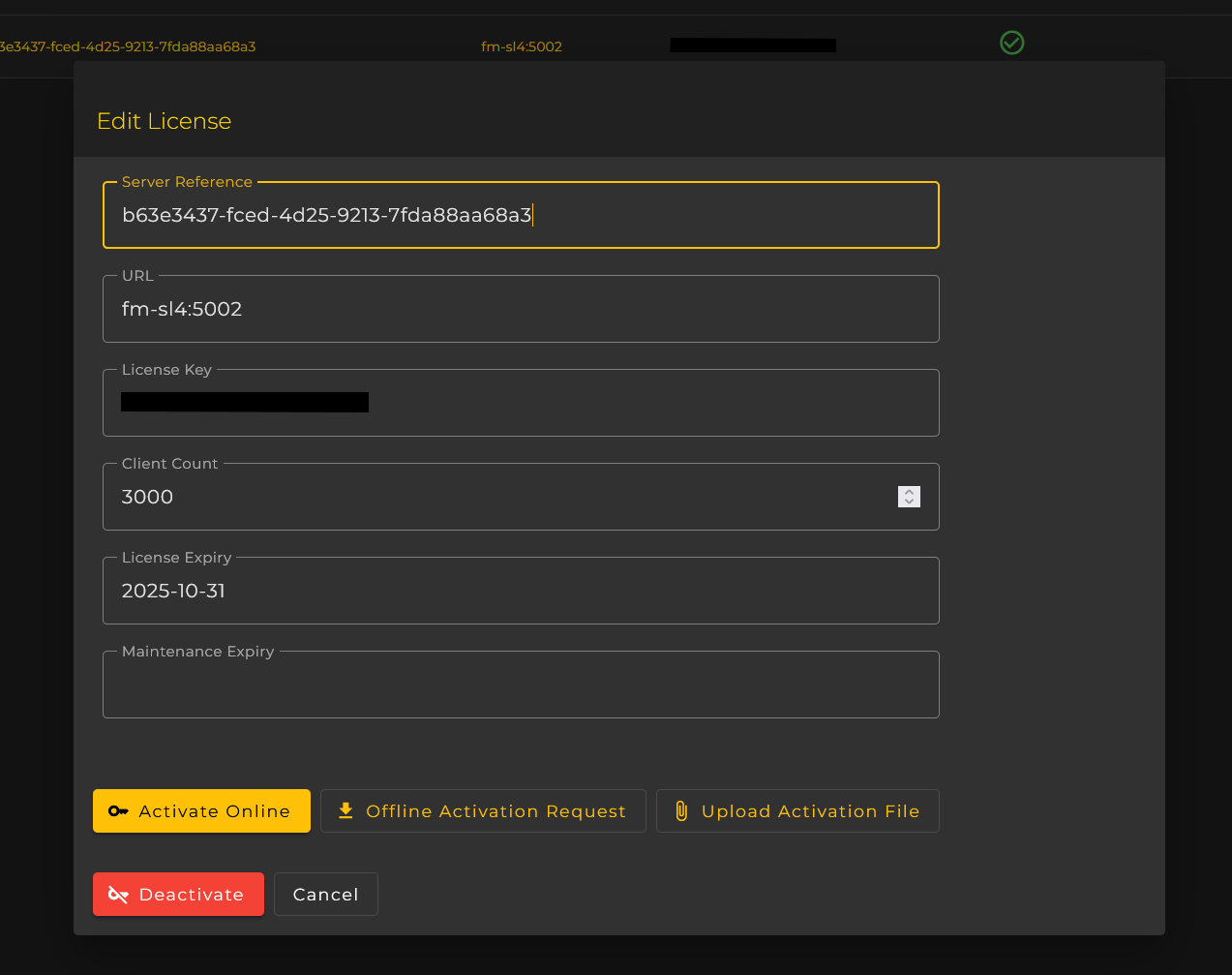
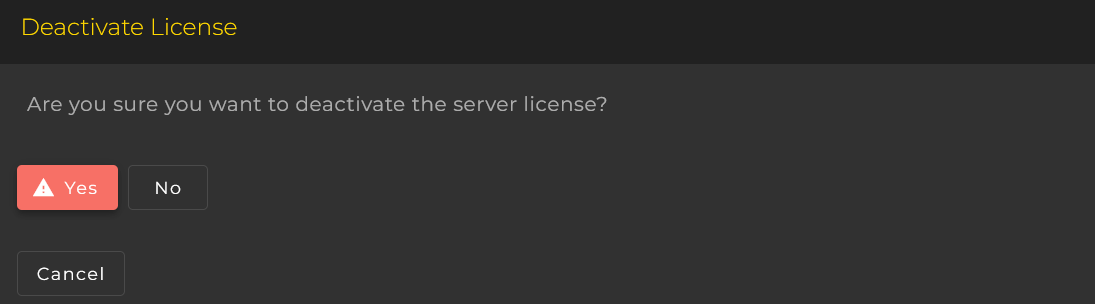
Click on the Deactivate button. You will be prompted to confirm the deactivation.
You will then be prompted to choose the method of deactivation. This can be done automatically by choosing the online method if internet access is available, or by following the offline deactivation request procedure.
Offline Deactivation Procedure:
- Click the 'Offline Deactivation Request' button to download an deactivation request file.
- Send this file to your Geutebruck Representative. They will provide you with a deactivation file.
- Click the 'Upload Deactivation File' button and select the deactivation file you have been provided.