Server Installation and Configuration
Installation Files
- G-Core_SQLServerInstaller.exe
- GHealthServer_v4.x.xx.x.exe
SQL Server Installation
Info
This section applies to the default install of G-Health using the supplied G-Core SQL Server 2019 Express installer
(G-Core_SQLServerInstaller.exe)
If you plan on using an external or pre-existing installation of Microsoft SQL Server then you can skip this section. See the Custom SQL server configuration for more info.
Run the G-Core SQL Server Installer, following the prompts to complete the install. The installation may take up to 10-15 minutes and requires a server restart part way through the process.
G-Health Server Services Installation
Run the G-Health Server Installer to install the services in your selected installation location.
Server Address Configuration
After installing the G-Health Server services it is necessary to configure the public address of the Proxy Service. This is the address that the G-Health clients will use to connect to the G-Health Server.
Using administrator privileges you need to edit the appsettings.json file that is located (by default) in the C:\Program Files\G-Health\G-Health Server\Proxy folder. Easy access to the G-Health install location can be realised by the user of the windows environment variable %ghealth%.
appsettings.json:
{
  "ConnectionStrings": {
    "MSSQLConnection": "Data Source =.\\GCORESQL; Initial Catalog = GHealth; Integrated Security = True; Encrypt = false"
  },
  "ServerReference": "{B63E3437-FCED-4D25-9213-7FDA88AA68A3}",
  "TokenKey": "IgFRVHNcLr/9OCj09\u002B3ODLotGNn\u002BbCsmixyAHTWWO94=",
  "Logging": {
    "LogLevel": {
      "Default": "Information",
      "Microsoft.AspNetCore": "Warning",
      "Microsoft.EntityFrameworkCore": "Warning",
      "GHealth": "Debug"
    }
  },
  "AllowedHosts": "*",
  "PublicAddress": "",
  "Kestrel": {
    "Endpoints": {
      "Https": {
        "Url": "https://*:5002",
        "Protocols": "Http2",
        "Certificate": {
          "Location": "LocalMachine",
          "Store": "My",
          "Subject": "Geutebruck Pacific",
          "AllowInvalid": true
        }
      }
    }
  }
}
Edit the below line to add the public address that the clients will use to connect.
"PublicAddress": "",
E.g.
"PublicAddress": "ghealthserver.mydomain.com",
Save your changes and restart the GHealth.ProxyService.
Info
If the public address is not configured the G-Health Proxy Service will attempt to discover its own hostname however this will likely only work for local G-Health Clients or you may get Certificate errors. Similarly if you enter an IP address then this likely will cause certificate issues.
Licensing Configuration
Before you can start registering client devices it is necessary to licence the G-Health Software. Your Geutebruck representative can provide you with a licence key, for a specified number of clients, to load and activate in the software.
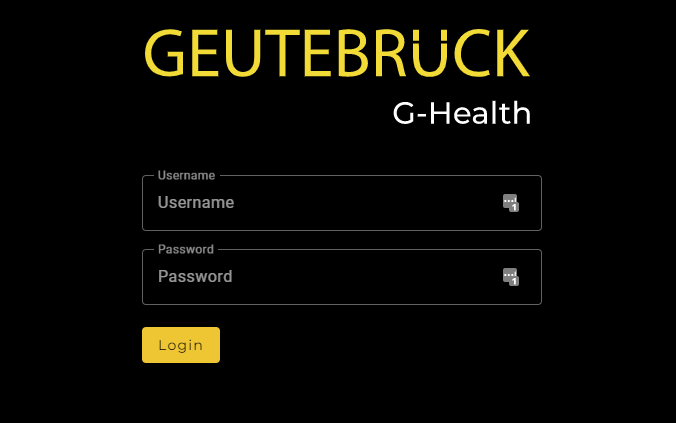
Using a compatible web browser, navigate to the G-Health Server at https://[serveraddress]:7002/
Info
The default credentials for logging into the G-Health web interface are:
- Username: sysadmin
- Password: Pa$$w0rd
After logging into the web interface for the first time you will be required to change the sysadmin password.
Once you have logged in, click on the settings button on the top navigation bar.

Next click on the Licensing Tile
Under a default install there should be a single server appearing in the server list. Click on this server to open the edit licence dialog.
Here you can load the licence key provided to you in the 'Key' field.
Next you have two options:
-
If the server has internet access then you can click the 'Activate Online' button and the software will automatically load the license key and activate itself.
-
If no internet is available then an offline activation must take place.
-
Click the 'Offline Activation Request' button to download an activation request file.
- Send this file to your Geutebruck Representative. They will provide you a licence activation file.
- Click the 'Upload Activation File' button and select the activation file you have been provided.
The server should now be activated and display the licensed client count.