Client Manager
Client Manager Overview
After the G-Health Client has been installed the the G-Health Client Manager can be opened by clicking on its icon on the desktop.
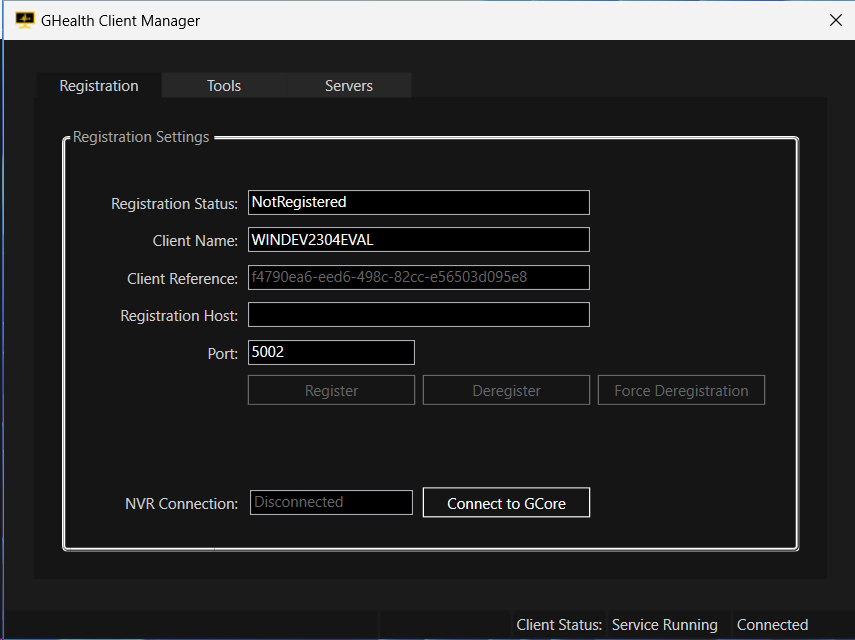
The G-Health Client Manager is where we can manage the G-Health Client. We can connect it to the G-Core service on the NVR, we can register it with the G-Health Server and we can perform maintenance tasks.
Connecting the G-Health Client to G-Core
In order for the G-Health Client to interact with the NVR's GCore service it must first be connected to it.
On the Registration Tab of the Client Manager Click the 'Connect to GCore' button.
You will be prompted to enter a valid username and password for the G-Core service. Click the 'Create Logon' button once you have done so. The Client Manager will then connect to G-Core and create its own set of secure credentials.
Registering the G-Health Client to the G-Health Server
To Register enter the server address of the G-Health server into the 'Registration Host' field. The default port is 5002 but you can choose a different port in the port field.
Click the 'Register' button. The G-Health client will then attempt to connect to the G-Health server and register with it. The result of the registration status will be displayed in the Status field.
If Registration is successful then you should see a new client appear in the G-Health Web console.
If you have not configured your server with a valid SSL certificate you will receive a message in the Client Manager indicating that the server's SSL Certificate is invalid It is strongly recommended that you configure your server with a valid SSL certificate, especially where the client communicates to the server over public networks, but you can choose to check the checkbox 'Allow Certificate Errors'. Checking this option will allow the client to communicate with the server but means that the identity of the server is not authenticated and the security of the connection is lessened.
Deregistering A Client
If a client machine no longer needs to be monitored, or is switching to another G-Health server, then the client needs to be de-registered. During the de-registration process the client will attempt to connect to the server and if successful the server will remove all registration information from the NVR and remove the client and its information from the Server.
Force Deregistration
Forced deregistration can be used if you wish to deregister a client from a server and either
- You do not currently have a connection to the server or the server is not responding correctly or
- You wish to disconnect the Client from the Server but not remove the client or its information from the server
When you click the 'Force Deregistration' button the client will enter the deregistered state and cease its communication with the server. The client can then be re-registered to a different server or it can be left in the deregistered state.
In this situation however the G-Health Server does not know about the deregistration and the client remains in its list of clients.The client can then either be manually deleted from the server via the web console or it can be left in the list for reference purposes.
A client that has been force deregistered but not deleted from the server can be reregistered back to the same server. If the client has already been deleted from the server then a new client entity will be created on the server for it.
Tools Tab
Clear Disks
The 'Clear Disks' button can be used to remove 'missing' disks from the G-Health Client.
When on or more disks fails and stop appearing to the client system, the client will create an alarm for the missing disks and mark them as missing in the G-Health server. Once the faulty disks are replaced then one can use this button to remove the now removed disks from G-Health.
Server Tab
On this tab you can see the list of G-Health Proxy servers currently in use.