Clients
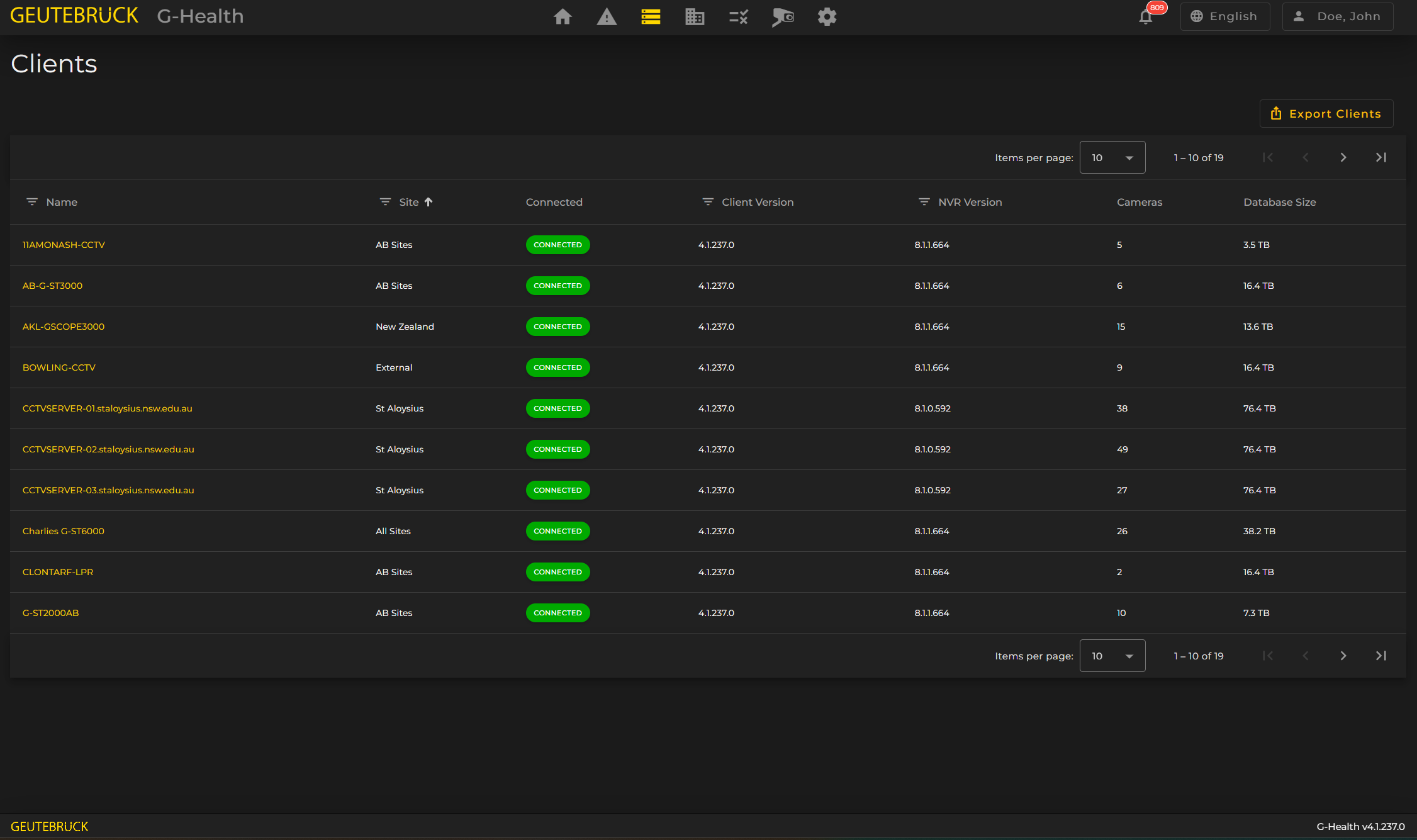
The clients section displays a list of registered G-Health clients. To view a client in more detail, click on the name of the client in the list.
Filtering
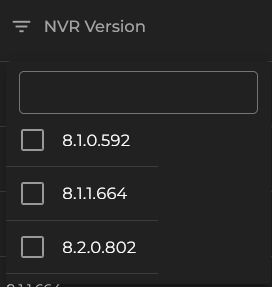
To filter the client list, click the filter button on the column you would like to filter by. This will display the options for filtering for that column. When the client list is filtered the “Remove All Filters” text will appear at the top of the list.
Exporting Client Information
Summary information can be exported from the client list screen. The export will create a .CSV file which can be read by spreadsheet software such as Microsoft Excel. The export will use the filter which is currently applied to the client list.
To export the list of clients, first apply a filter (if required), then click the 'Export Clients' button.
Client Details
The client details screen provides information about the registered G-Health client. In this screen you will be able to view:
- Information about the client hardware, operating system and system performance.
- Information about the Geutebruck NVR, including cameras, archive depth, licenses and recording performance summaries.
- A list of alarms on the client which are unresolved.
- Information about the internal storage, such as hard drive temperature, RAID arrays and controllers.
- Information about the network cards installed in the NVR.
It is also possible to enable or disable automatic client updating for each client from its details page. This functionality is disabled if the Automatic Updates are disabled in the global settings.
Setups
G-Health makes backups of the NVR configuration. It saves one setup for each day that a configuration change is made. It retains the last 10 of these setups. From a Client's Details page you can click the download setup dropdown button. This will list the last 10 saved setups. Clicking on a particular date/setup it will download that setup to your computer.

Actions
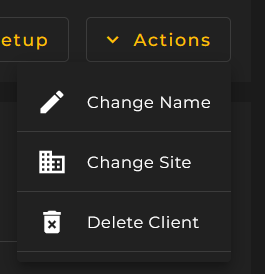
The actions dropdown menu on the Client Details page allows you the options of:
- Deleting a client
- Assigning the client to a Site